The docu2.me Help Menu provides quick access to support resources, including documentation, updates, keyboard shortcuts, and feedback options, all integrated within the Salesforce environment.
1 - Help
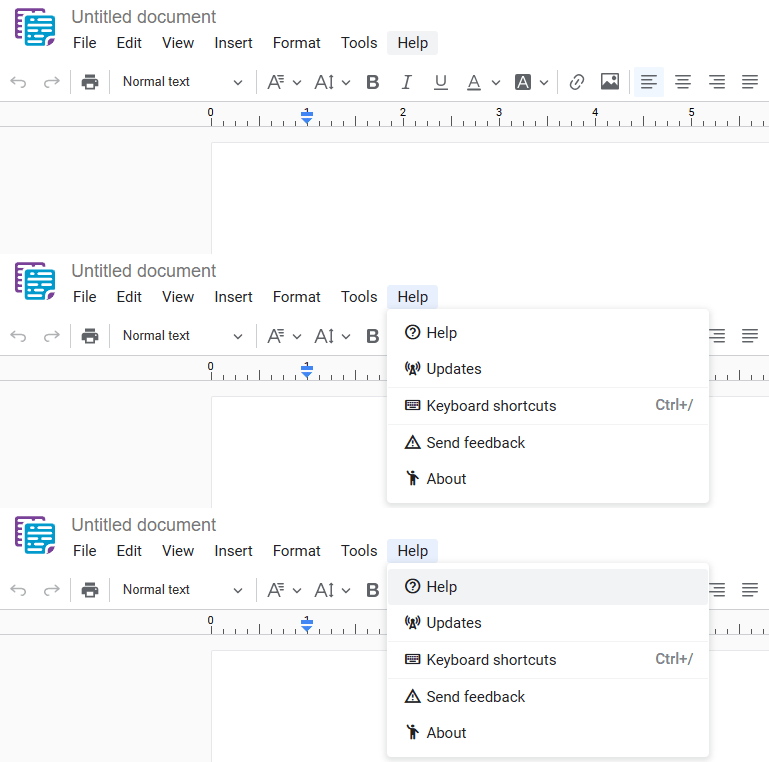
The "Help" menu is your gateway to the complete docu2.me documentation.
- Menu: Access the main menu.
- Help: Click on "Help".
- Help: In the dropdown menu, select"Help".
Click "Help" in the main menu to be redirected to the online help page: https://help.docu2.me/
2 - Updates
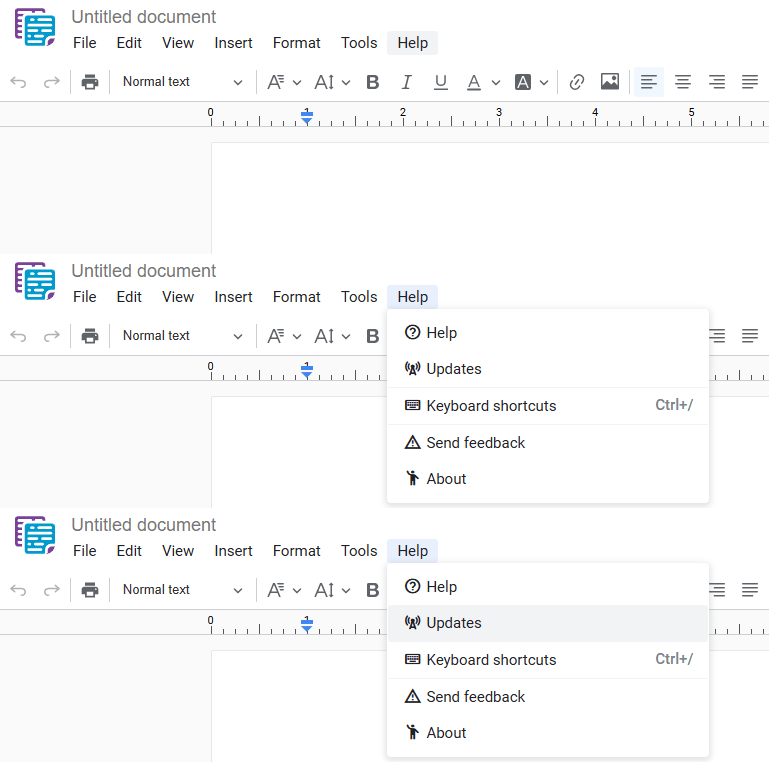
Stay up-to-date with the latest docu2.me news through the "Updates" menu.
- Menu: Access the main menu.
- Help: Click on "Help".
- Updates: In the dropdown menu, select"Updates".
Click "Updates" in the main menu to view the Changelog, which lists all updates, from bug fixes to new features: https://docu2.me/updates/
3 - Keyboard shortcuts
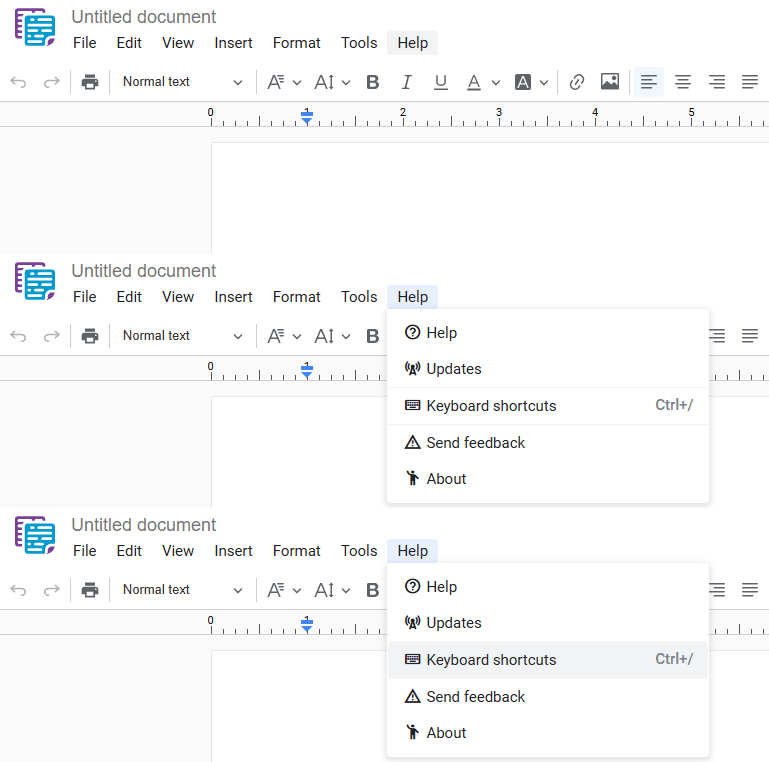
Increase your productivity by mastering docu2.me keyboard shortcuts.
- Menu: Access the main menu.
- Help: Click on "Help".
- Keyboard shortcuts: In the dropdown menu, select"Keyboard shortcuts".
- Shortcut key: Ctrl+/ or ⌘+/
Click "****Keyboard shortcuts" in the main menu to view a complete list of shortcuts for text editing and navigation within the application.
Keyboard Shortcuts:
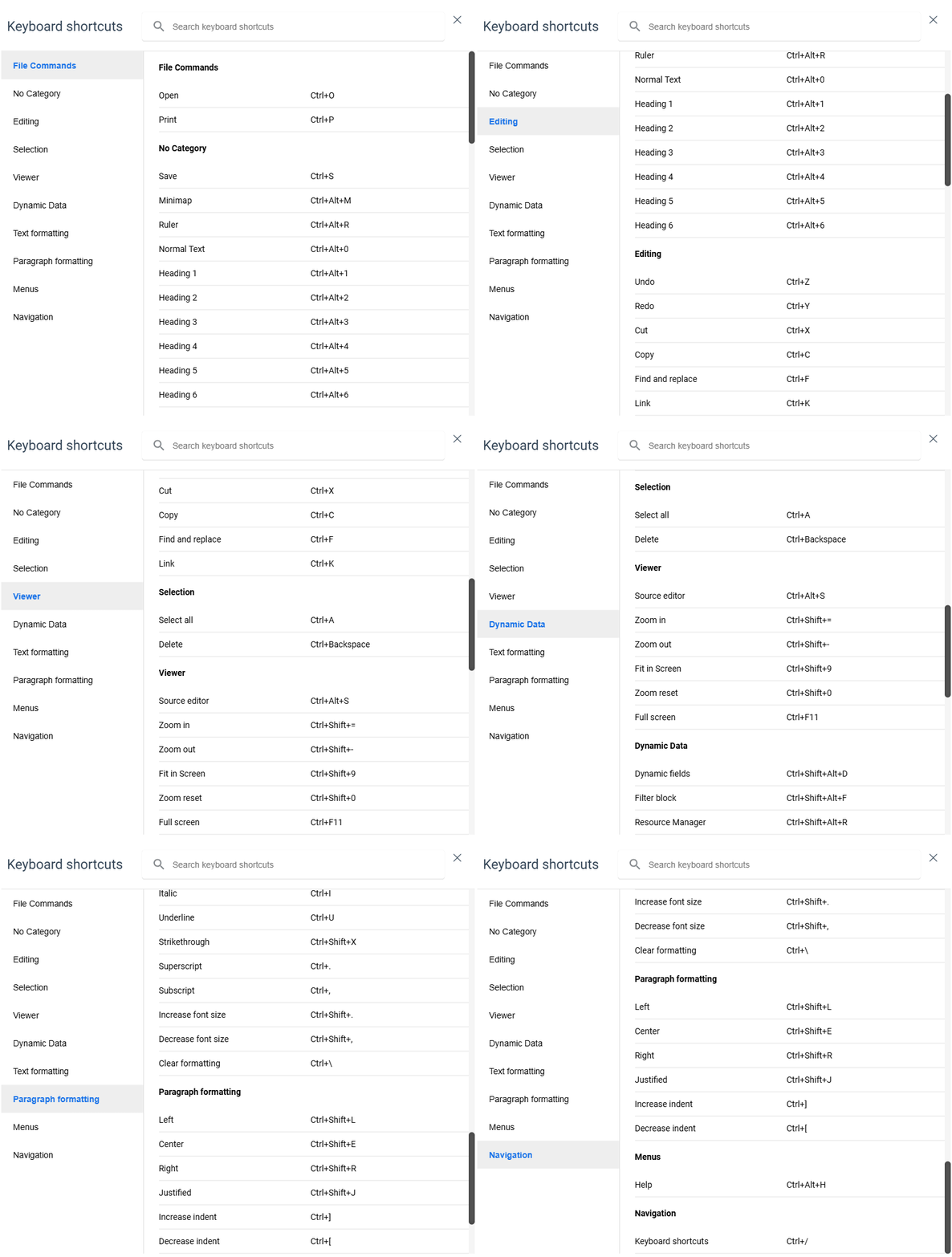
Table Keyboard Shortcuts:
| Keyboard shortcuts | Actions | Windows/Linux | macOS | |
| File Commands | Open | Ctrl+O | Command+O | |
| Ctrl+P | Command+P | |||
| No Category | Save | Ctrl+S | Command+S | |
| Minimap | Ctrl+Alt+M | Option+Command+M | ||
| Ruler | Ctrl+Alt+R | Option+Command+R | ||
| Normal Text | Ctrl+Alt+0 | Option+Command+0 | ||
| Heading 1 | Ctrl+Alt+1 | Option+Command+1 | ||
| Heading 2 | Ctrl+Alt+2 | Option+Command+2 | ||
| Heading 3 | Ctrl+Alt+3 | Option+Command+3 | ||
| Heading 4 | Ctrl+Alt+4 | Option+Command+4 | ||
| Heading 5 | Ctrl+Alt+5 | Option+Command+5 | ||
| Heading 6 | Ctrl+Alt+6 | Option+Command+6 | ||
| Editing | Undo | Ctrl+Z | Command+Z | |
| Redo | Ctrl+Y | Command+Y | ||
| Cut | Ctrl+X | Command+X | ||
| Copy | Ctrl+C | Command+C | ||
| Find and replace | Ctrl+F | Command+F | ||
| Link | Ctrl+K | Command+K | ||
| Selection | Select all | Ctrl+A | Command+A | |
| Delete | Ctrl+Backspace | Command+Backspace | ||
| Viewer | Source editor | Ctrl+Alt+S | Option+Command+S | |
| Zoom in | Ctrl+Shift+= | Command+Shift+= | ||
| Zoom out | Ctrl+Shift+- | Command+Shift+- | ||
| Fit in Screen | Ctrl+Shift+9 | Command+Shift+9 | ||
| Zoom reset | Ctrl+Shift+0 | Command+Shift+0 | ||
| Full screen | Ctrl+F11 | Command+F11 | ||
| Dynamic Data | Dynamic fields | Ctrl+Shift+Alt+D | Control+Shift+Option+D | |
| Filter block | Ctrl+Shift+Alt+F | Control+Shift+Option+F | ||
| Resource Manager | Ctrl+Shift+Alt+R | Control+Shift+Option+R | ||
| Text formatting | Bold | Ctrl+B | Command+B | |
| Italic | Ctrl+I | Command+I | ||
| Underline | Ctrl+U | Command+U | ||
| Strikethrough | Ctrl+Shift+X | Shift+Command+X | ||
| Superscript | Ctrl+. | Command+. | ||
| Subscript | Ctrl+, | Command+, | ||
| Increase font size | Ctrl+Shift+. | Command+Shift+. | ||
| Decrease font size | Ctrl+Shift+, | Command+Shift+, | ||
| Clear formatting | Ctrl+\ | Command+\ | ||
| Paragraph formatting | Left | Ctrl+Shift+L | Command+Shift+L | |
| Center | Ctrl+Shift+E | Command+Shift+E | ||
| Right | Ctrl+Shift+R | Command+Shift+R | ||
| Justified | Ctrl+Shift+J | Command+Shift+J | ||
| Increase indent | Ctrl+] | Command+] | ||
| Decrease indent | Ctrl+[ | Command+[ | ||
| Menus | Help | Ctrl+Alt+H | Command+Option+H | |
| Navigation | Keyboard shortcuts | Ctrl+/ | Command+/ | |
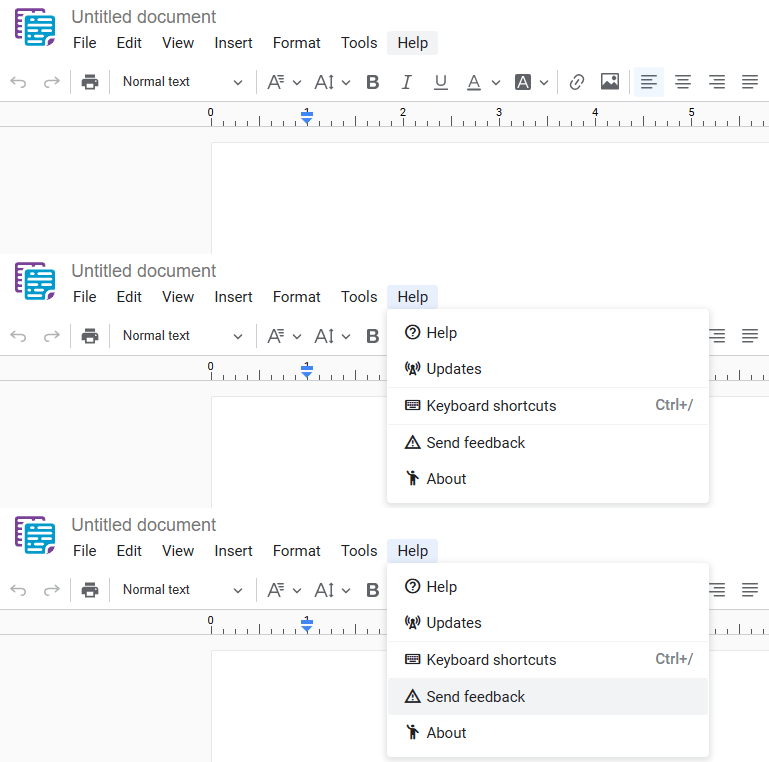
4 - Send feedback
Your opinion is important to us! Use the "****Send Feedback" menu to share your ideas, suggestions, or report problems.
- Menu: Access the main menu.
- Help: Click on "Help".
- Send feedback: In the dropdown menu, select"Send feedback".
Click "Send Feedback" in the main menu to be redirected to the feedback form: https://docu2.me/feedback/
5 - About
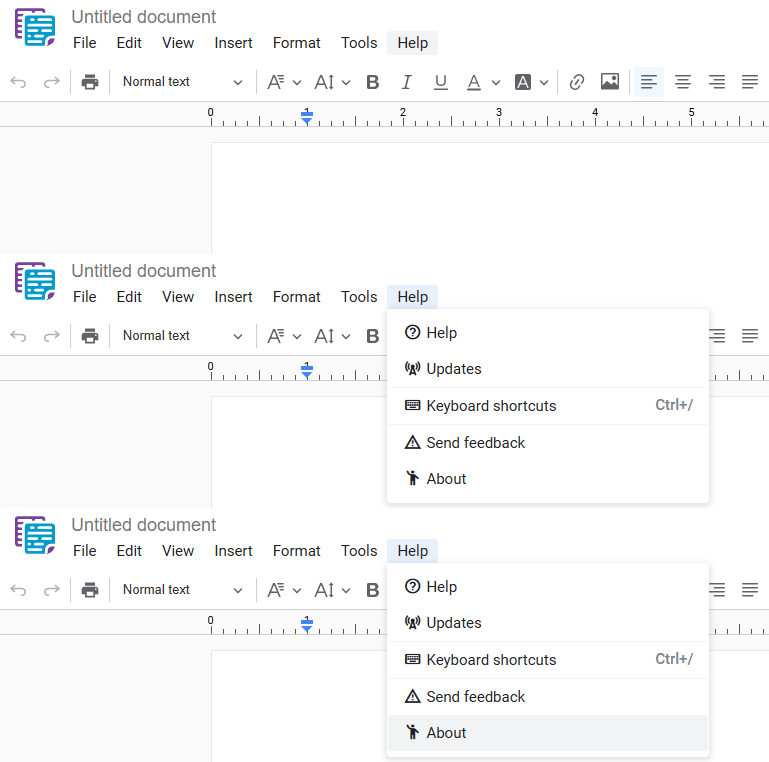
Meet the team behind docu2.me and learn more about the application.
- Menu: Access the main menu.
- Help: Click on "Help".
- About: In the dropdown menu, select"About".
Click "****About" in the main menu to view information about docu2.me and its contributors: https://docu2.me/about/
Key Benefits
- Quick Access to Information: Easily accessible complete documentation
- Constant Updates: Stay informed about new features
- Enhanced Efficiency: Learn keyboard shortcuts to work faster
- Direct Communication: Easy channel to send feedback and suggestions
- Transparency: Learn more about the team behind docu2.me
Final Considerations
The docu2.me Help Menu offers a comprehensive set of support resources, essential for maximizing user efficiency and satisfaction within the Salesforce environment:
- Integrated Support: Access help resources without leaving the Salesforce platform
- Continuous Learning: Stay up-to-date with the latest features and improvements
- Experience Customization: Use keyboard shortcuts to adapt the workflow to your needs
- Collaborative Improvement: Contribute to docu2.me development through feedback
- User Confidence: Transparency about the team and history behind the tool
By effectively utilizing the Help Menu resources, users can optimize their experience with docu2.me, quickly resolve questions, and contribute to the continuous improvement of the platform. This results in a smoother and more efficient integration with document management processes in Salesforce, improving overall productivity and user satisfaction.